Freitag, 13. April 2012

Alternate Access Mapping not Working in a developper environment


I installed SharePoint 2010 in a virtual machine. I created a WebApplication and a SiteCollection on this WebApplication. Then I extended this WebApplication with a new host Header and a made sure that the bindings in the IIS Settings were set right. Then I created a new Zone and a new Host(A) in the VM DNS Manager. You can find a lot of blogs describing how you need to proceed for this. But the Alternate URL was still not working. And I always got the error Message: 

"Internet Explorer cannot display the webpage"

I spend a lot of time searching for the error. Finally I found what I forgot. I admit it's a dumb mistake, but I think the hint could save some time to some people around here:

Don't forget to enter the IP Address of your virtual machine as an alternate DNS Server in your Network Connection Properties:

Dienstag, 27. März 2012

Moving a SharePoint site Collection to another managed Path using PowerShell


I recently needed to move a Site Collection from one managed path to another. I found this blog using stsadm commands. I translated this to a PowerShell script: 


$fromUrl = "http://portal.dev/sites/TestSiteCollection"
$toUrl = "http:// portal.dev"

$backupPath = "c:\siteBackup"
Backup-SPSite $fromUrl -Path $backupPath -force
Remove-SPSite -Identity $fromUrl -Confirm:$false
Restore-SPSite -Identity $toUrl -Path $backupPath -Confirm:$false

How to add a field to the User Profile / Active Directory synchronization

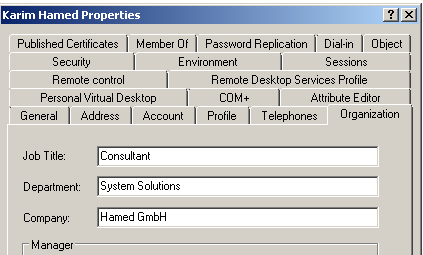
In the AD I Have this:


But when I look in the User Profile the field “Company” Is missing. To see if the field is even synced let’s look at the User Profile service:
  • Connect to the Central Administration
  • Go to Application Management – Service Applications – Manage service applications
  • Click on the  User Profile Service Application

  • Click on “Manage User Profiles”
  • Search for a User and look if you can find the field Company


In My case the field “Company” is missing. So let’s add this field
  • Go back to the manage Profile Service Screen and click on Manage User Properties
  • Click “New Property” and fill out the following Form:


Basically that’s it. If you want to see the changes in the User Profiles you need to Start Synchronization. Go back to the Manage Profile Service Screen and click on “Start Profile Synchronization”


Run a Full Synchronization and wait until it finished. Be aware that a full sync is time and compute intensive.
Now your field should show up in the SharePoint User Profile


Samstag, 24. März 2012

Adding SharePoint Shell access to an Admin Account

I was recently added as administrator to a SharePoint server farm. I was able to access the Central Administration with no problem. But the issue was that PowerShell was not working. I got this error message when I started the "SharePoint 2010 Management Shell":

The local farm is not accessible. Cmdlets with FeatureDependencyId are not registered..


Also when I tried to start the SharePoint Manager 2010 I get this error: "Object reference not set to an instance of an object"

I have had this error before and I got a lot of trouble with Powergui at that Time too. To get this work you need make sure the logged user has rights to the SharePoint Configuration Database (db_owner and SharePoint_Shell_Access)

But be aware that direct changes to the SharePoint DB are not supported by Microsoft. To make this right use the Add-SPShellAdmin PowerShell command with an Administrator account:

Add-SPShellAdmin -username MyUserName


Now you can user Powershell but you will get this error when trying to access a Site with: "Get-SPWeb $url"


Cannot find SPWeb object with 'Id' or URL:"


You need to grant rigths on the content databses using this commands:

> $contentDB = get-spcontentdatabase -site http://server/site
> add-spshelladmin -UserName DOMAIN\Username -database $contentDB


Thanks to this Blog


Mittwoch, 15. Februar 2012

Set List Item Permission in SharePoint designer 2010 Workflow


A customer asked me to program a SharePoint designer action that enables to set permissions on an Item. In Moss 2007 this was definitively missing. But then after a little bit of googling (or should I say Binging?) I found out, that this action was now added in SharePoint designer 2010. 
So when I created a workflow I couldn’t find the Action in the list.


The solution was to add an impersonation step to the workflow, and see there; new Actions are available including the one to set Item Permissions


The impersonation step runs under the Author of the workflow and not the one who started the workflow


Mittwoch, 8. Februar 2012

Term Store Management base Configuration - Step by Step

Sometimes in the site collection administration the menu item Term Store Management is missing. 

This is because you created the Site Collection using the Blanc Template. I Found the solution in this Blog. In case The Blog will be removed, here is the solution:

Connect to the server, start the SharePoint 2010 Management Shell and enter this

stsadm -o activatefeature -id 73EF14B1-13A9-416b-A9B5-ECECA2B0604C -url http://toplevelsiteurl


And see there the option will appear in the site collection administration:

Now you have the problem, that you can’t add Groups or terms to your term stores. 

This is because the Managed Metadata Service is not yet configured and you don’t have the required permissions to do so.

Now Go to the central administration and click on Manage Service Applications


Mark Managed Metadate Service (click on the right side)


In the ribbon click on „Administrators“

Add the actual Farm administrator as an Administrator for Managed Services and don't forget to check the "Full Control" Checkbox.

Now go Back on the Manage Service Applications site and click again on the Managed Metadata Service.


On the ribbon click this time on “Manage”

And add the users that will be Term Store Administrators

Now if you’re back in the term Store management in the site collection you will be able to add a new Group and new Terms.

Please Notice: The Managed Metadata Service is only available on SharePoint Server Standard and SharePoint Server Enterprise. Don’t bother looking for it on a SharePoint Foundation.

Dienstag, 31. Januar 2012

Is this the New SharePoint Car?

Of course it’s not but I found this special Edition of a six wheeled Twingo Pickup so strange and Funny and I thought: If Microsoft would create a SharePoint car I bet it will look like this. By the way, this picture was taken in Garmisch-Partenkirchen after a long Snowboarding day.